 Globespot
Where Was This Photo Taken? How to Find Out
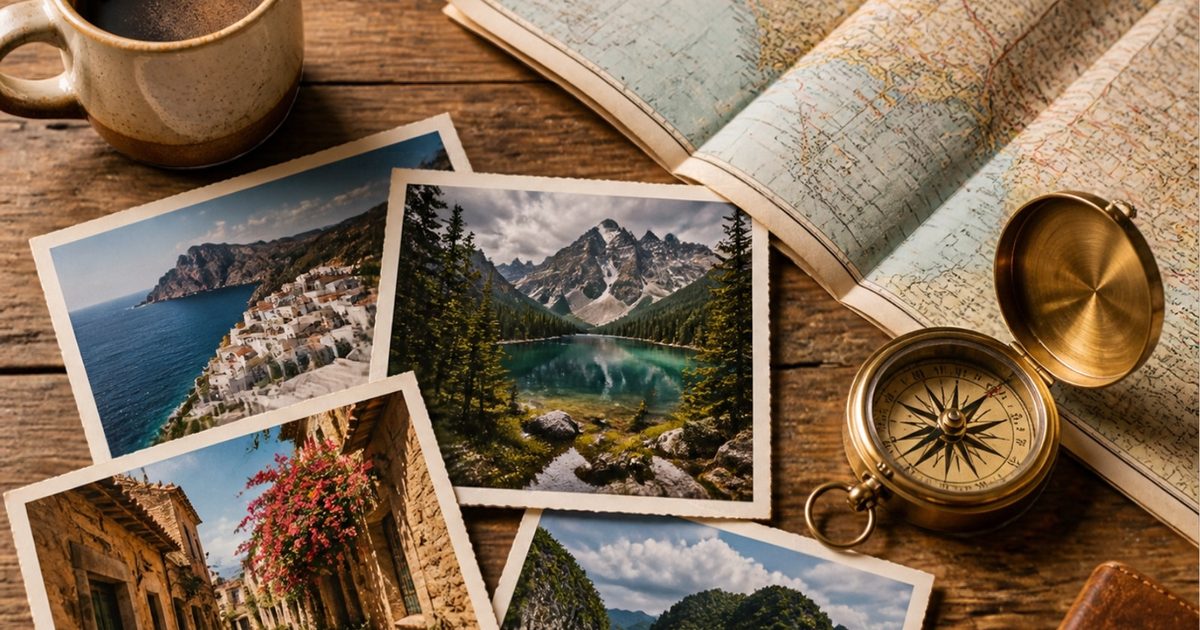
You scroll back through your camera roll and stop on a photo of a blue door, a narrow street, a plate of something delicious. You remember the light. You don't remember the town. If you've ever stared at a picture and asked, "where was this photo taken?", you're in good company. Most of us come home with thousands of shots and only a fuzzy map of where they came from.
The good news is that your phone usually remembered for you. Here's how to find the answer, and how to keep those places from slipping away again.
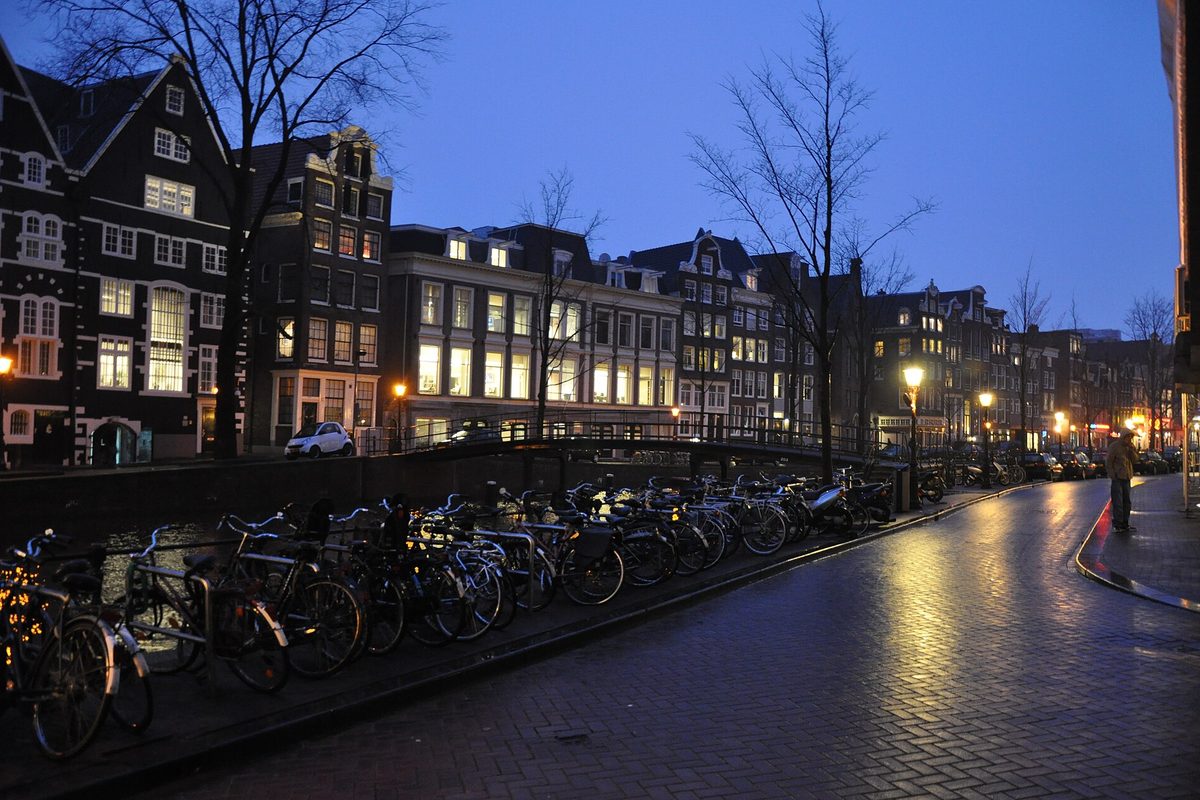

Where Was This Photo Taken? Start With the Photo Itself
When you take a picture with location services turned on for the Camera, your iPhone saves the GPS coordinates inside the file. This is part of the photo's metadata, the quiet notes that travel with every image: date, time, camera, and often place.
So the first step to answering "where was this photo taken" is simply to look at what your device already saved.
Where was this photo taken on iPhone?
Open the photo in the Photos app and swipe up, or tap the info button. If the photo has location data, you'll see a small map with a pin. Tap the map for a closer look.
If there's no map, the location probably wasn't recorded. That happens with screenshots, photos saved from messages or social apps, and shots taken with location turned off.
Where was this photo taken on Mac?
In the Photos app on a Mac, select the picture and open the Info window. If location data exists, a map appears there too.
Finding where a photo was taken on the web
Many online photo libraries show location in a photo's info or details panel. If you uploaded your originals, the place usually came along with them. For a fuller walkthrough across devices, our guide to where was this photo taken covers each step.
When You Can't Tell Where This Photo Was Taken
Sometimes the metadata is gone. Older cameras didn't save GPS, and some apps strip it out when you share. That's when you turn detective.
A few clues that help:
- Signs and menus. Language, street names, and shop logos narrow things down fast.
- Your other photos. Look at what you shot just before and after. One located photo can place a whole afternoon.
- The date. Match it against old tickets, emails, or a travel journal.
- Landscape and architecture. Roof styles, plants, and the shape of the coastline all carry hints.
It's slower, but piecing it together can bring back the trip in a way a pin on a map never quite does.

Seeing Where Each Photo Was Taken, Without Searching
Looking things up one photo at a time works, but plenty of travel photos never get opened again. That's the part Globespot tries to fix.
Globespot rotates your own travel photos on your iPhone Lock Screen, so the trips you took show up while you're checking the time. With Just tell me, each photo comes with the place it was taken. You glance down, see a market stall, and the name of the city is right there.
With Globespot Plus, every place you've been becomes a dot on a globe, and you can replay the journey from one stop to the next.
A game of "where was this photo taken?"
There's also a game that shows you one of your own photos and asks you to guess where you were. That fuzzy feeling of "I know this place" turns into a fun little memory test.
Turning "Where Was This Photo Taken" Into "Where Next?"
Once you can see where you've been, the next question comes naturally. Globespot has a wishlist for the places you want to go next, so the dots on your globe can point forward too. If you want help shaping that next trip, The Traveling Taylors has itineraries and country guides worth browsing.
Keep Asking Where This Photo Was Taken
Your camera roll is a map you made without trying. Turn on location for the Camera before your next trip, and check the info panel when you're curious. And whenever you catch yourself asking where was this photo taken, take a minute with our photo location guide and find out.
Questions people ask
How do I see where a photo was taken on my iPhone?
Open the photo in the Photos app and swipe up or tap the info button. If the photo has location data, a map with a pin shows where it was taken.
Why doesn't my photo show a location?
The location may never have been saved, for example if location was off for the Camera, or it may have been removed when the photo was shared through a messaging or social app. Screenshots don't include a location either.
How do I find where a photo was taken on a Mac?
In the Photos app, select the photo and open the Info window. If the photo has location data, a map appears there.
How can I tell where a photo was taken without location data?
Look for clues like signs, language, architecture and landscape, check the photos you took just before and after it, and match the date against tickets, emails or a travel journal.